Agent Installer Management
Agent Installer is where you manage the installer packages for the agent, grouped by operating system.
Package List
Packages are grouped into sections by operating system, e.g. Package for Windows and Package for MacOS.
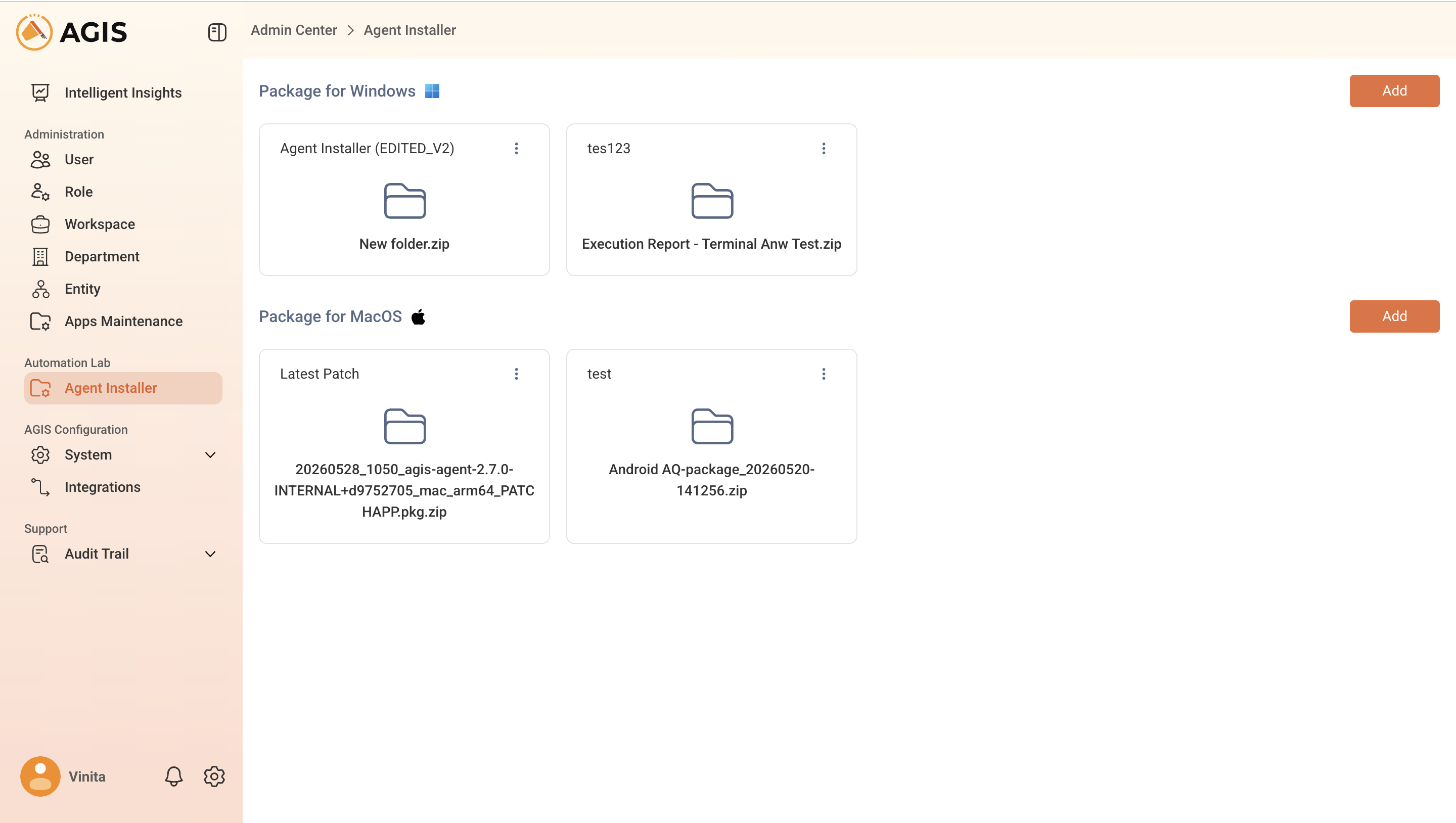
Each package is shown as a card with its display name at the top and the uploaded file name at the bottom.
Add a Package
Click Add next to an operating system's section (e.g. Package for Windows) to open the upload dialog.

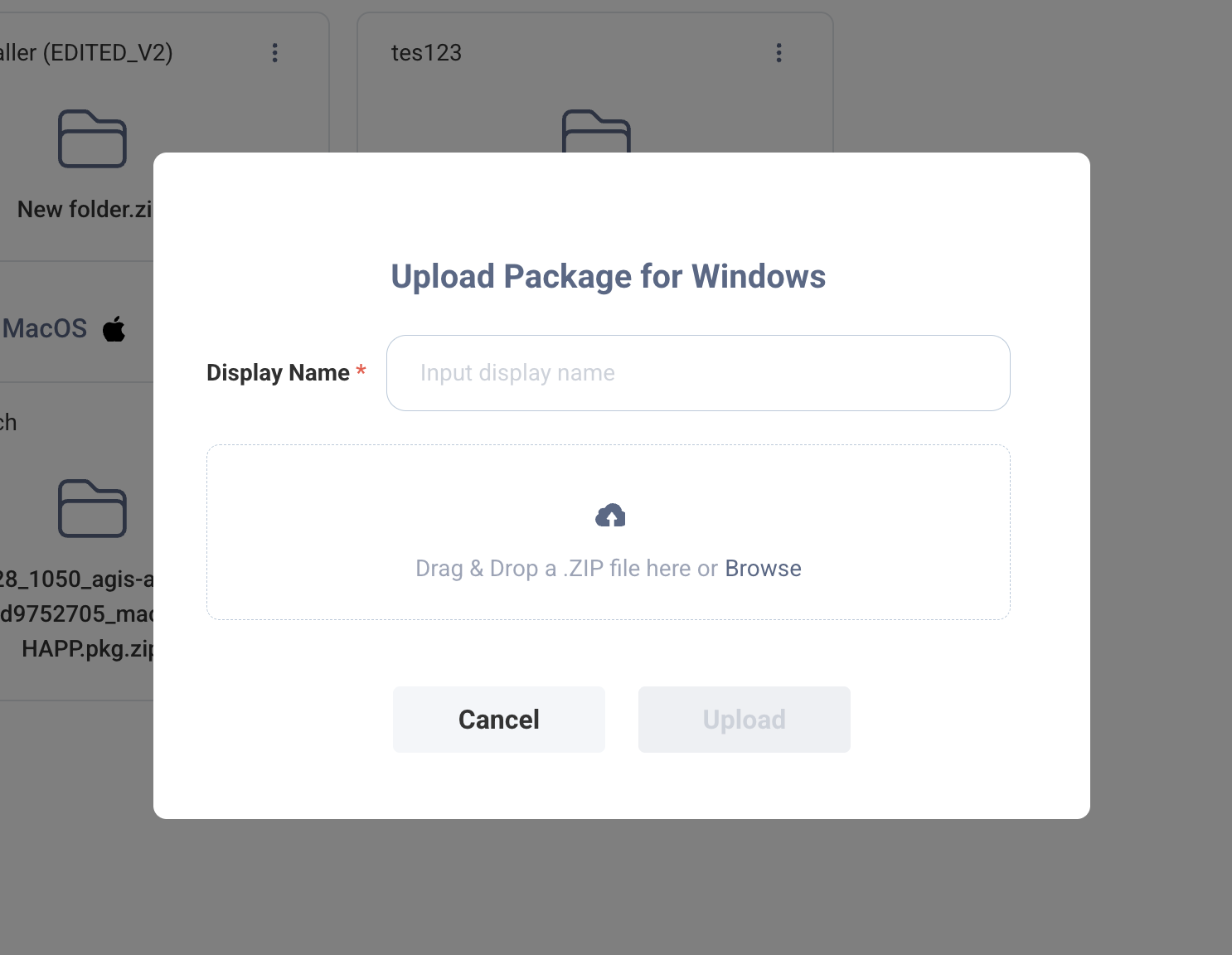
- Enter a Display Name (required).
- Drag and drop a .ZIP file into the upload area, or click Browse to select one.
- Click Upload to add the package, or Cancel to discard it.
Edit a Package
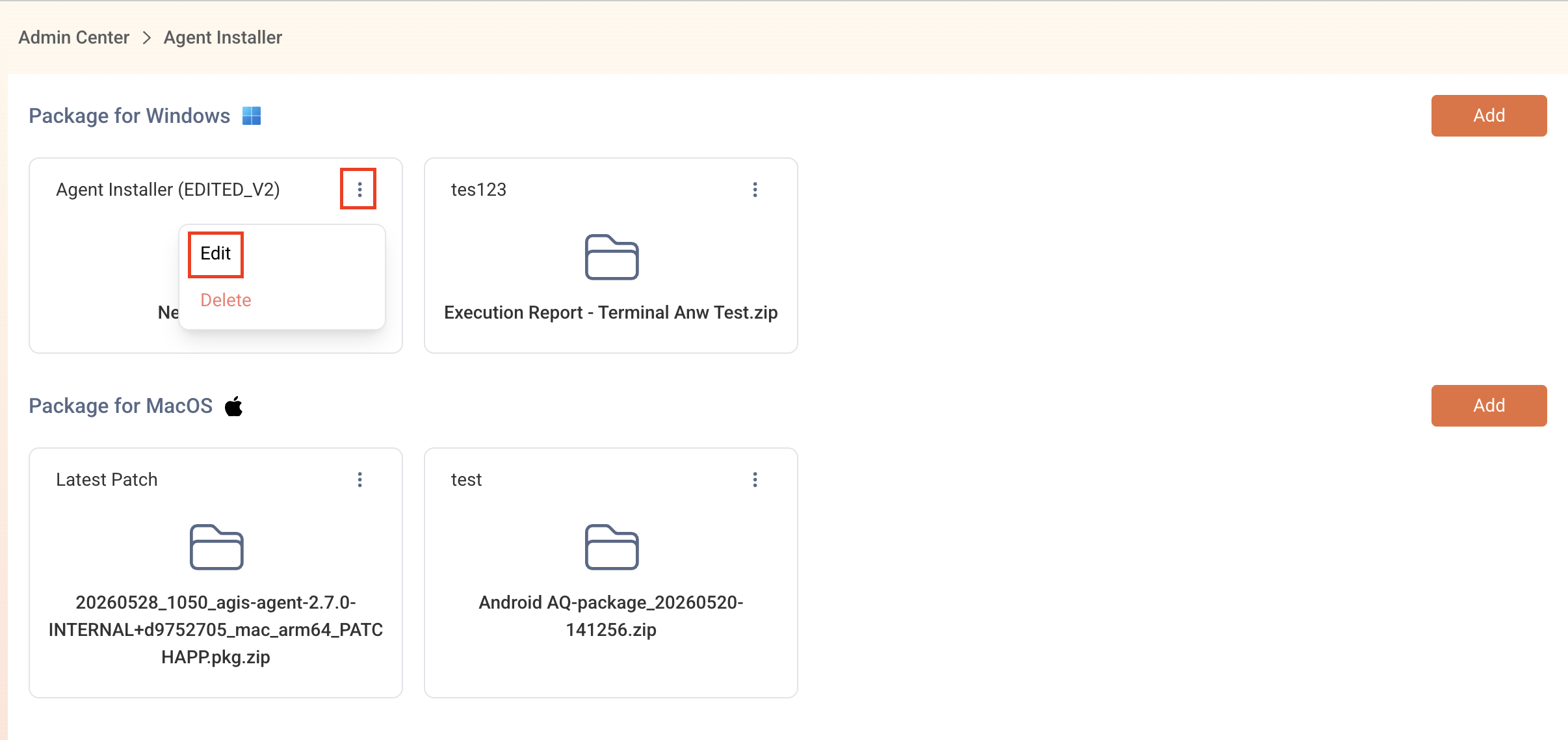
Click the ⋮ icon on the package card, then select Edit to open the Change Package dialog, pre-filled with the package's current Display Name and file.
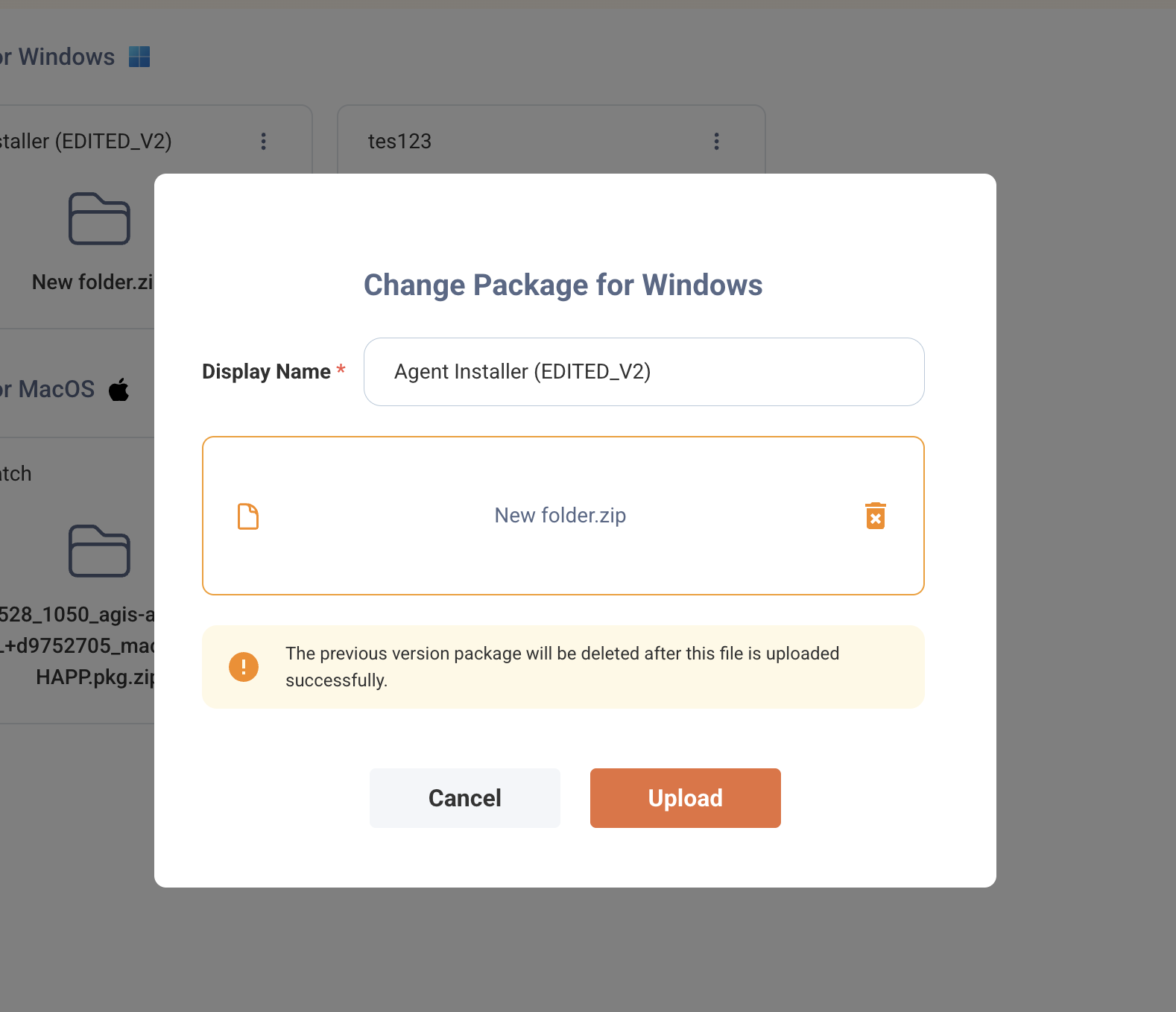
- Update the Display Name if needed.
- Click the trash icon next to the current file to remove it, then drag and drop a new .ZIP file or Browse to select one.
- Click Upload to save the changes, or Cancel to discard them.
warning
The previous version of the package is deleted once the new file is uploaded successfully.
Delete a Package
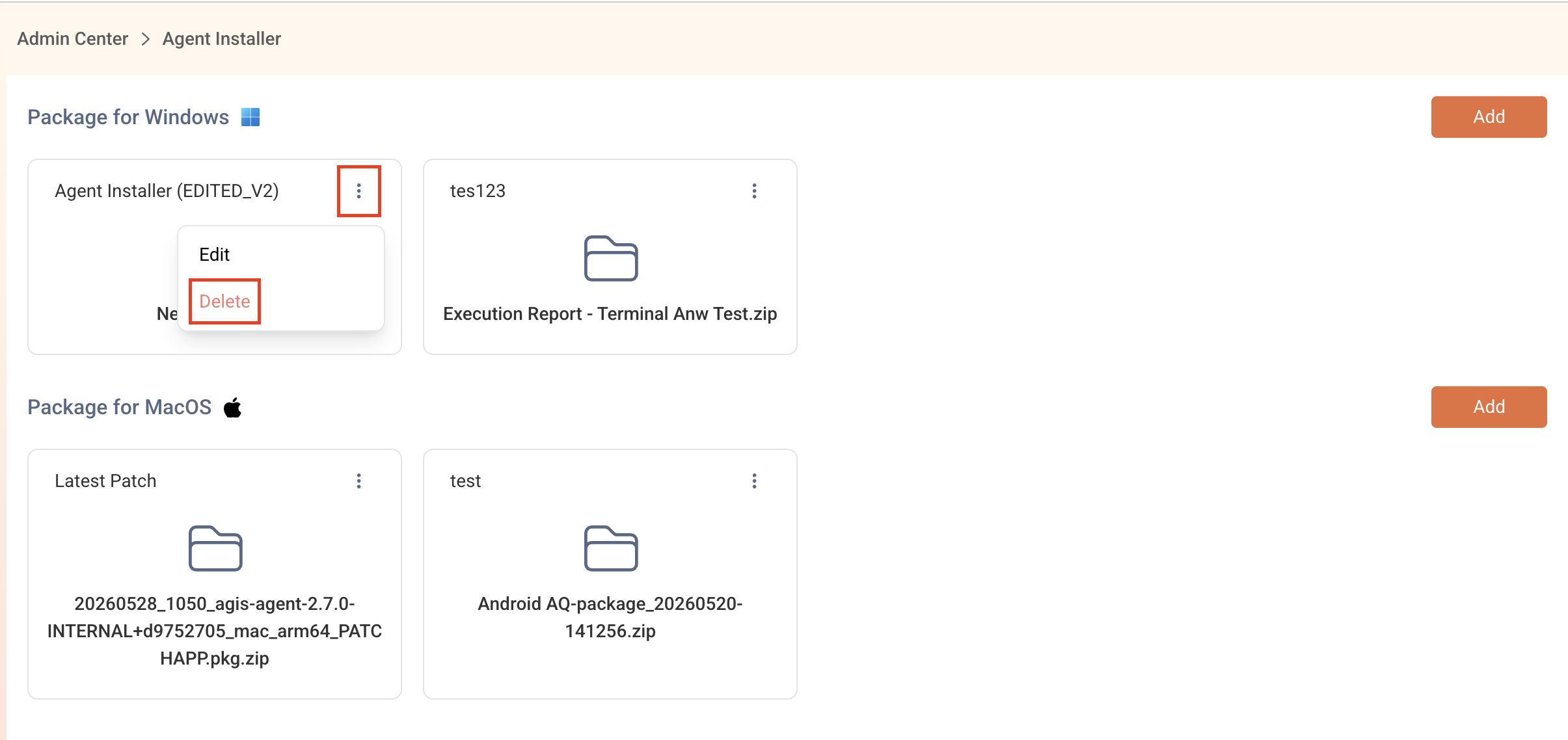
Click the ⋮ icon on the package card, then select Delete to remove the package.